Create Your Own Linux Game Console Using Steam Big Picture Mode
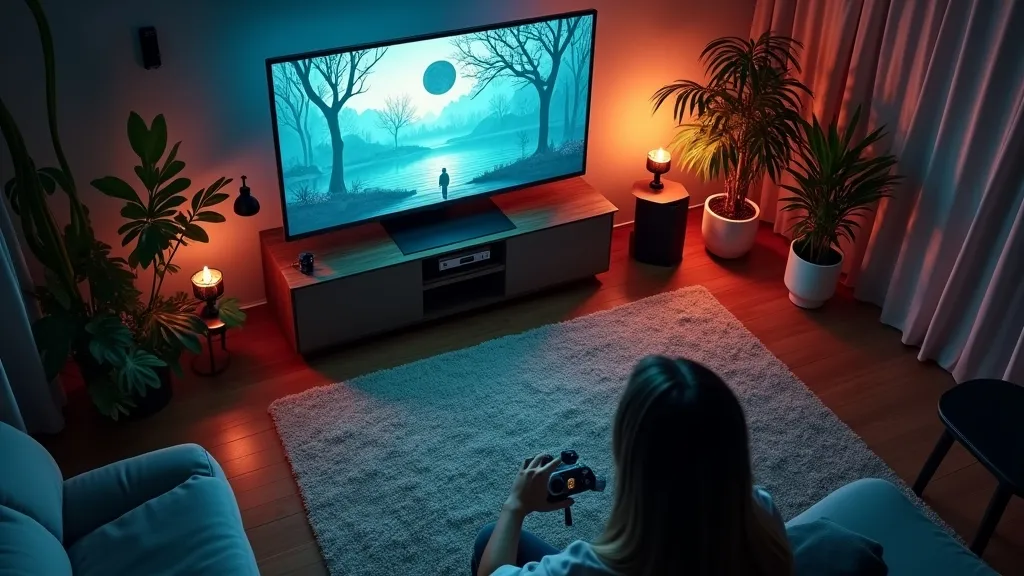
Building a Linux game console with Steam’s Big Picture Mode is an exciting project that can enhance your gaming experience while providing a deeper understanding of Linux. This article will guide you through the steps needed to set up your console, optimize it for gaming, and offer tips to get the most out of your setup.
What You’ll Need
Before diving into the setup process, here’s a quick list of the essentials you’ll need:
- A computer or a single-board computer (like a Raspberry Pi)
- A Linux distribution (Ubuntu, Fedora, etc.)
- Steam installed on your system
- A game controller (optional but recommended)
- An HDMI cable to connect to your TV or monitor
- A reliable internet connection
Choosing the Right Linux Distribution
Selecting the right Linux distribution is crucial for your gaming console. Popular choices include:
- Ubuntu: Known for its user-friendliness, it has excellent community support and extensive documentation.
- Fedora: Offers the latest features with cutting-edge software.
- Arch Linux: Provides a DIY experience for advanced users who want complete control over their system.
For first-time users, Ubuntu is often the best choice due to its simplicity and vast repository of software.
Setting Up Your Linux Game Console
Installing Linux
Once you’ve chosen a distribution, download the ISO file from the official website. Create a bootable USB drive using tools like Rufus or Etcher. Insert the USB drive into your computer and boot from it.
Follow the installation prompts on-screen to set up your operating system. Ensure you have a separate partition for your games, which can help with performance and organization.
Installing Steam
After setting up your Linux distribution, the next step is to install Steam. Open a terminal and enter the following commands depending on your distribution:
For Ubuntu:
sudo apt update
sudo apt install steam
For Fedora:
sudo dnf install steamAfter installation, open Steam and log into your account. If you do not have an account yet, creating one is straightforward.
Configuring Steam Big Picture Mode
Big Picture Mode is tailored for use with a TV and game controller, transforming your Steam experience into a console-like interface. To enter Big Picture Mode:
- Open Steam.
- Click on the Big Picture Mode icon in the upper right corner.
- Adjust the settings according to your preferences.
Connecting Your Controller
Most modern game controllers are compatible with Steam. Whether you’re using an Xbox, PlayStation, or another brand, connecting the controller is usually straightforward. You can use either a wired connection or Bluetooth:
-
To connect via Bluetooth, put your controller in pairing mode and navigate to the Bluetooth settings in your Linux distribution.
-
For wired connections, simply plug in your controller via USB.
Once connected, return to Big Picture Mode and ensure your controller is recognized. You can customize button mappings and settings in the controller configuration options.
Optimizing Performance for Gaming
Update Graphics Drivers
Performance is key for a smooth gaming experience. Make sure your graphics drivers are up to date. You can typically find driver updates through the package manager of your Linux distribution. For NVIDIA users, the Proprietary Driver is recommended for optimal performance.
- For Ubuntu, navigate to “Software & Updates” > “Additional Drivers” and select the recommended driver.
- For Fedora, use the following command for NVIDIA:
sudo dnf install akmod-nvidiaManage System Resources
To ensure your system runs smoothly while gaming, consider closing unnecessary applications and services running in the background. You can use tools like htop to monitor your system’s resource usage.
Adjust Steam Launch Options
Some games may benefit from specific launch options. To set them:
- Right-click on the game in your Steam Library.
- Click on “Properties.”
- In the “General” tab, find “Launch Options” and enter the desired options.
Common options include:
-novidto skip intro videos.-highto prioritize the game process.
Installing and Running Games
Adding Games to Your Library
Steam allows you to purchase, install, and play a plethora of games. Many titles are available for Linux, and you can also use compatibility layers like Proton to play Windows-only games.
- Search for the game in the Steam Store.
- Purchase and download the game.
- Once downloaded, you can launch it directly from your Library.
Using Proton for Windows Games
If you want to play Windows-exclusive titles, Proton is a powerful tool. To enable it:
- Go to Steam settings.
- Navigate to “Steam Play.”
- Check “Enable Steam Play for all other titles.”
Steam will now attempt to run Windows games using Proton.
Troubleshooting Common Issues
While building a Linux game console is rewarding, you may encounter some challenges. Here are some common issues and their solutions:
Game Compatibility
Not all games run flawlessly on Linux. Check the ProtonDB for user reports on game compatibility and performance tips.
Performance Issues
If you’re experiencing low frame rates, consider lowering the graphics settings in-game or checking your system’s resource usage to identify bottlenecks.
Controller Not Recognized
If your controller isn’t detected, confirm that it’s properly connected, or try reconnecting it. Ensure that the Steam Input settings are correctly configured in Big Picture Mode.
Conclusion
Building a Linux game console with Steam Big Picture Mode opens up a world of gaming possibilities. With the right setup, you can enjoy an extensive library of games on a platform that suits your preferences. Whether you are looking to play indie gems, AAA titles, or classic games, Linux offers a unique approach that caters to gamers and tech enthusiasts alike.
By following these tips and tricks, you can create an optimized gaming experience that showcases the power of Linux while enjoying the fun of gaming. Happy gaming!